Custom Space Sticker Maker
Create space stickers for science journals and cosmic gifts in Sticker Flux. Start with an original idea below, then choose an art style and a square, circle or die-cut shape in the advanced sticker maker.
Start designing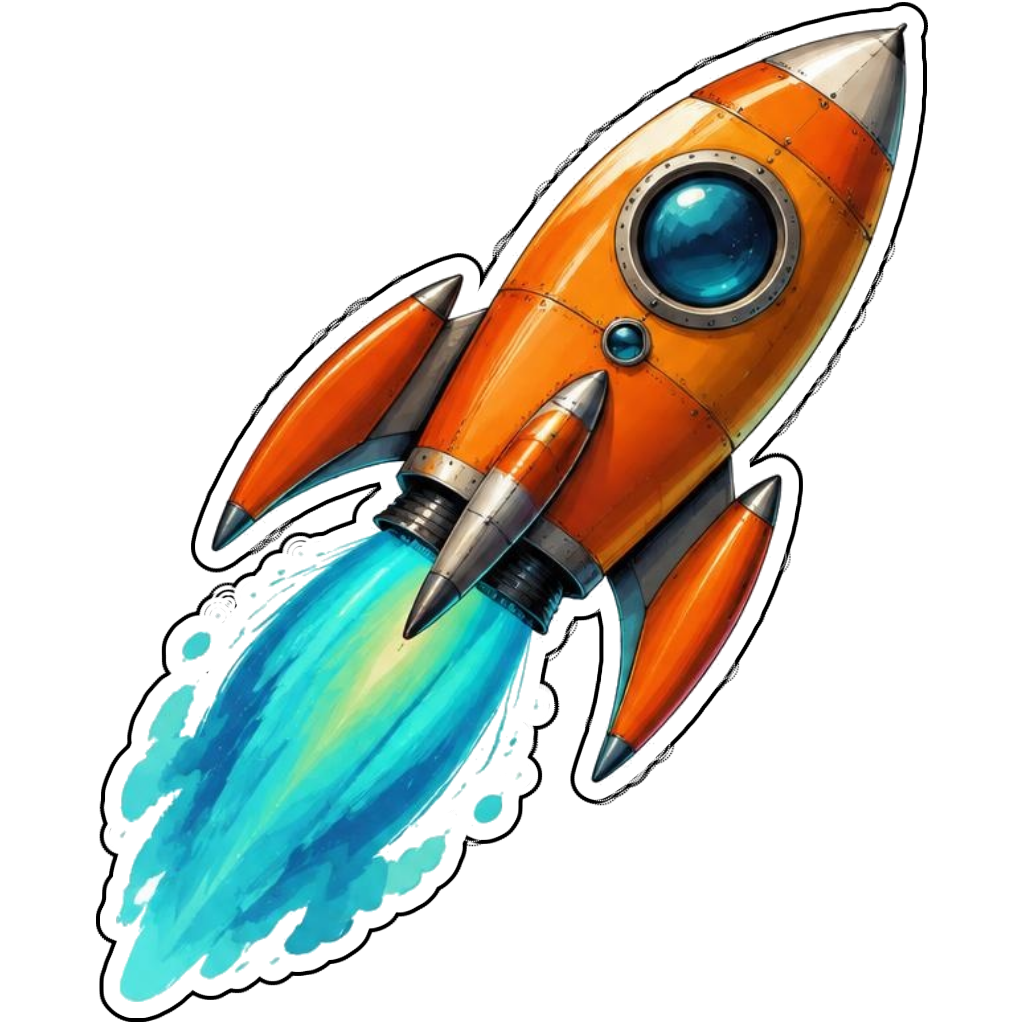
Ideas to try
An orange rocket with turquoise exhaust
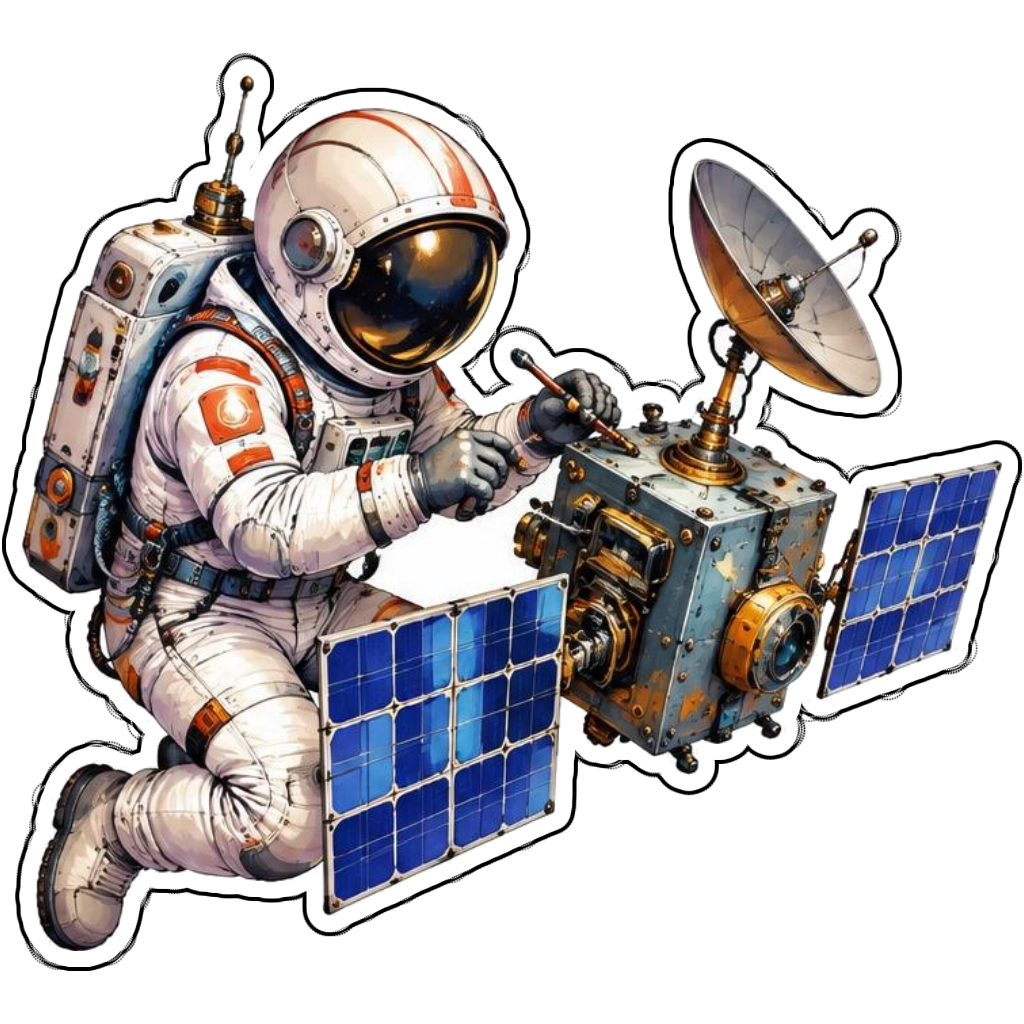
An astronaut repairing a satellite
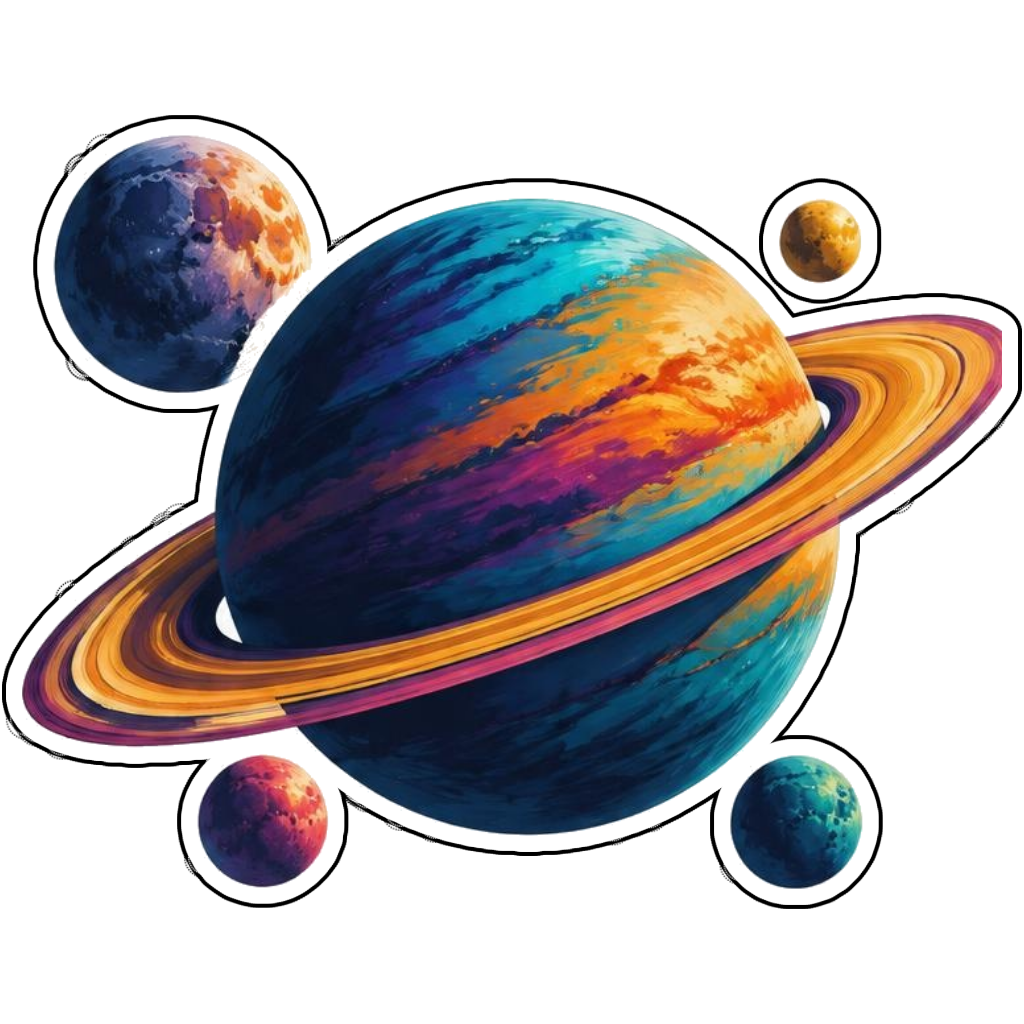
A jewel-toned ringed planet with moons
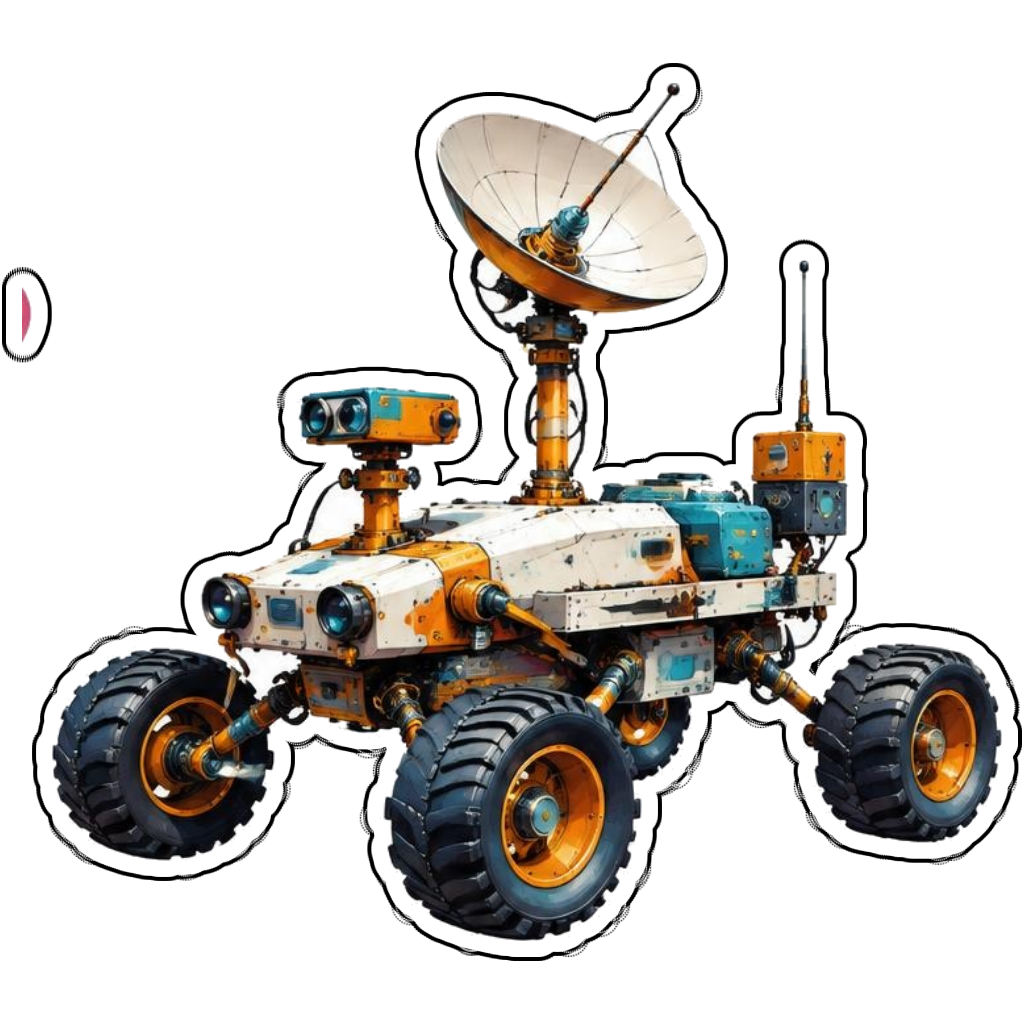
A colorful lunar rover with antenna
How it works
Choose your motif
An orange rocket with turquoise exhaust. Adapt the pose, colors and details to make the idea your own.
Set style and shape
Open the advanced maker with an idea below. Include a medium such as watercolor or cartoon in the prompt, then choose Square, Circle or Die-Cut.
Review your artwork
Check small details and any lettering. Downloads use the same finished artwork as the preview; print a test at your intended size before preparing a full sheet.
Design ideas for space stickers
Choose an astronaut, rocket, planet or rover as the main subject. Describe the equipment and activity, such as repairing a satellite, to avoid a vague collection of unrelated stars and moons.
Build a personal space collection
Cosmic sticker art can use jewel-tone planets, orange rockets and turquoise exhaust for strong contrast. Choose square for a full starfield or die-cut for isolated equipment. Scientific-looking illustrations are still decorative; verify any factual diagrams separately.
Tips
- Keep exhaust connected to the rocket silhouette.
- Do not crowd planet rings against circle edges.
- Verify scientific details before classroom use.
FAQ
Can I create educational space stickers?
You can create space-themed artwork, but check equipment and astronomy details independently. AI illustrations are not verified scientific diagrams.
How do I start a space sticker design?
Tap an idea to open the advanced maker with that prompt filled in. Change the subject details, add optional text and choose a sticker shape before creating.
Which file should I use for contour cutting?
For circle or die-cut artwork, use the PNG to retain the transparent exterior. JPG fills that exterior with white. Import and check the outline in your cutting software; the app does not supply a machine-specific SVG path or registration marks.